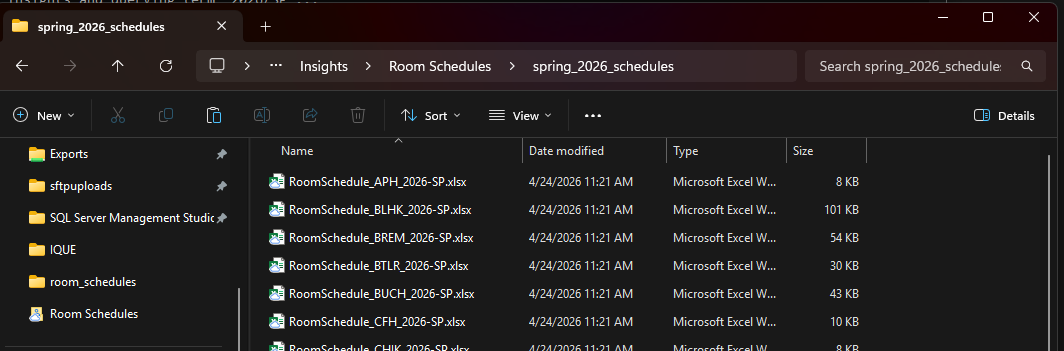
Run these steps only one time:
1. Download and install latest version of python (https://www.python.org/downloads/windows/)
2. Open a command prompt
3. In the prompt, go to G:\Shared drives\Insights\Room Schedules

4. Run the following command to install the keyring that will stored the Insights database password:
pip install psycopg2-binary keyring openpyxl

5. Run this command to store the password. Note when it prompts you for the password, the cursor will not move when you enter or paste it in.
python generate_room_schedules.py --set-password

Regular Script instructions:
1. Run the following command from a command prompt, where <term> is the term for the room schedules, and <outputfolder> is where the files will be saved
python generate_room_schedules.py <term> <outputfolder>
Example for 2026/SP:
python generate_room_schedules.py 2026/SP spring_2026_schedules
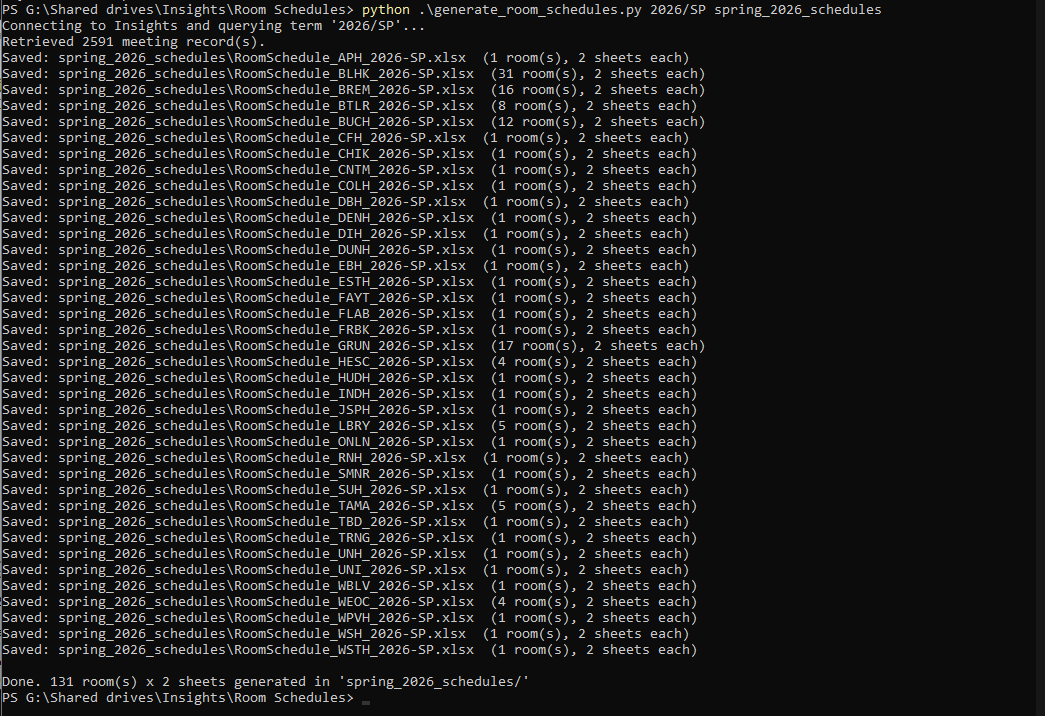
2. In this example, the files will be saved in the G:\Shared drives\Insights\Room Schedules\spring_2026_schedules folder. Script will output each schedule that's generated
3. There is one Excel workbook generated per building. Each workbook has the full-page and half-page schedules for each room in the building.